Choose Your Browser for Every Link – Effortlessly
Every day, I work with many different tools and websites. Some links are for work (multiple projects, project specific), or work, but for a different project, and some are personal (email, news, etc.). I also use different Chrome profiles: one for internal work, one for external work (project specific), and one for personal stuff.
The problem?
When I clicked a link, it often opened in the wrong browser or the wrong profile.
I had two ways to "fix" this, but both were annoying:
- I copied the link, then manually opened the right browser, and pasted it there.
- I made sure the browser I wanted was already open and active (focused), and then clicked the link. This only worked if it was the same type as the default browser (like Chrome). And even then, it wasn't always reliable.
I got frustrated many times. I had to find some solution for this problem.
That's when I found a small Windows tool called Browser Selector.
What is the Browser Selector tool?
Browser Selector is a free tool for Windows platforms. You set it as your default browser. When you click a link (for example, from email or Slack), it shows a popup window. This window lets you choose which browser or browser profile you want to use. The design looks a bit old-school, like something from Windows XP times, but it doesn't matter.
It works perfectly and does exactly what it promises. If you care more about function than style, you'll probably love it.
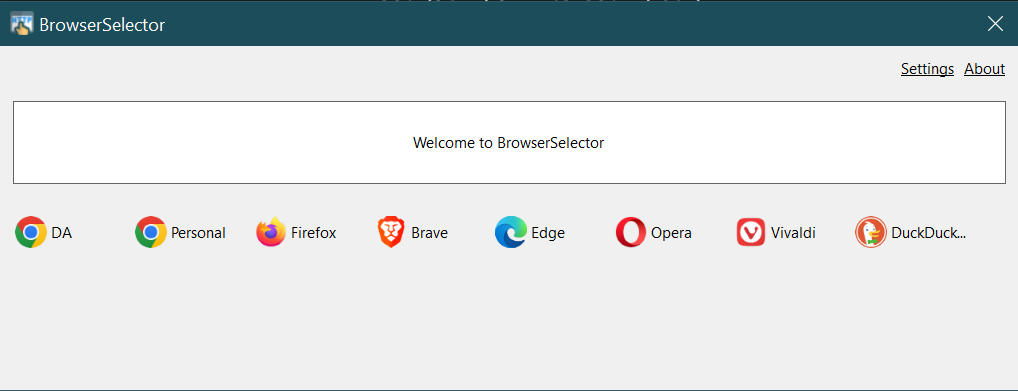
How to Set It Up
- Download it from the Microsoft Store: Download here
- Open Windows Settings -> Apps -> Default Apps -> Web browser. Set Browser Selector as your default browser.
- Open the Browser Selector app -> click Settings
- Now add the browsers you want to use:
- Browser Selector will automatically detect some common browsers (like Chrome, Edge, Firefox).
- But you can also add any browser manually by giving the path to its
.exefile.
Set up multiple Chrome profiles
Browser Selector works with Chrome profiles too.
Example:
- Chrome – Personal
- Chrome – Work
- Firefox
- Edge
To add a Chrome profile:
-
Use an argument like this:
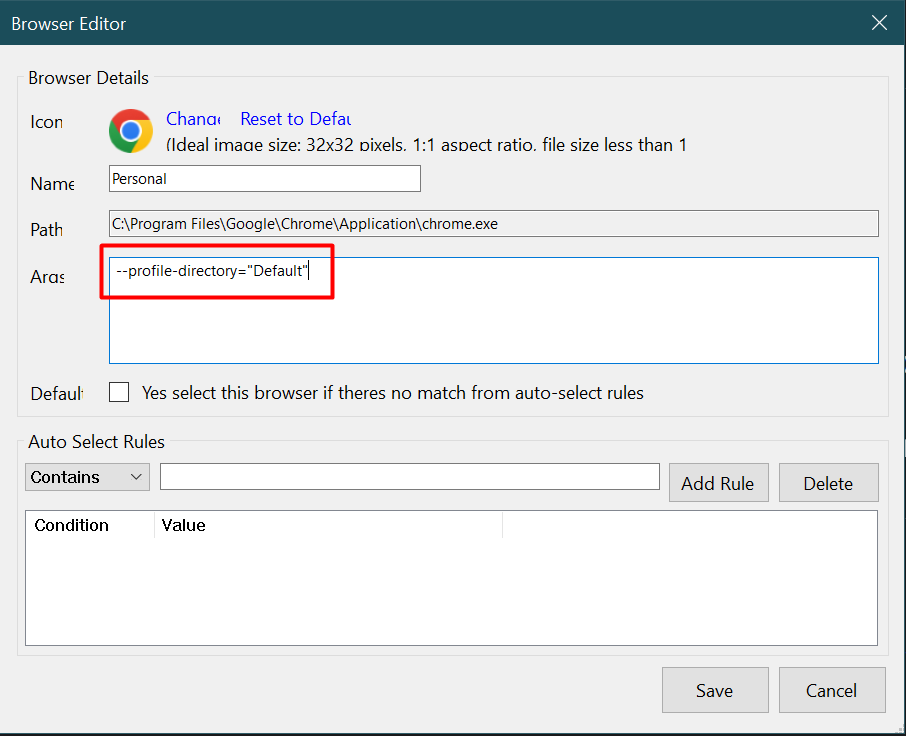
-
In the next part you can find where to look up Chrome's profile names.
How to Find Chrome Profile Names
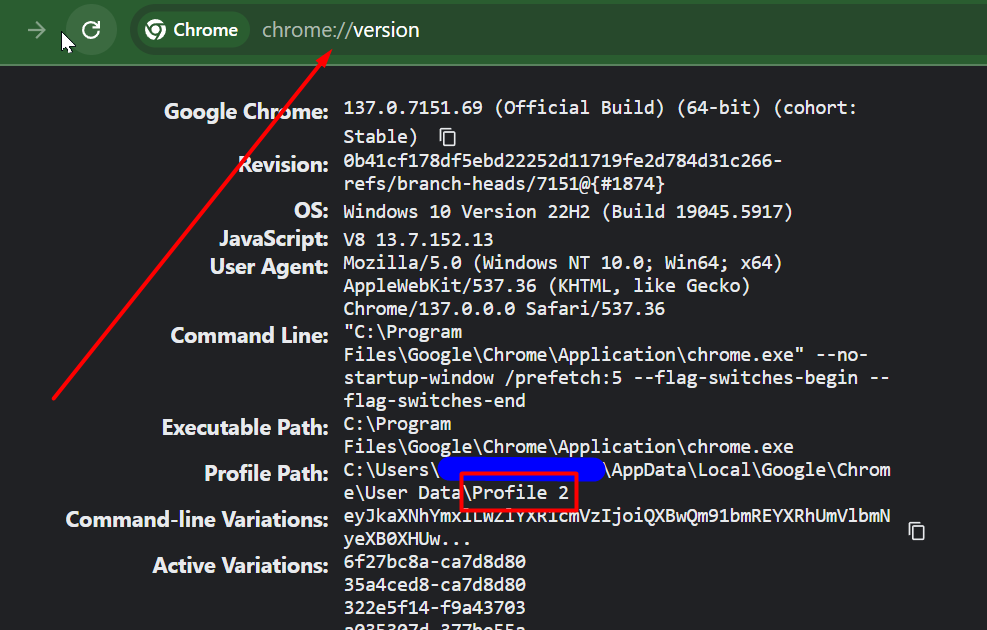
If you want to add different Chrome profiles to Browser Selector, you need to know the profile directory name.
Here's how to find it:
- Open Chrome with the profile you want to use.
- In the address bar, type:
chrome://version
Bonus: Rules for Automatic Handling
One of my favorite features: Auto Select Rules.
You can configure Browser Selector to automatically open certain URLs in specific browsers/profiles, no popup needed.
For example:
jira.mycompany.com-> Always open in "Chrome – Work"custom-domain.com-> Always open in Firefoxmail.google.com-> Always open in "Chrome – Personal"
To set these up:
- If you add a browser with the "Installed Browsers" option (like Chrome or Firefox – auto detected by the app), the "Auto Select Rules" section will only appear in the Edit window (so you need to add the browser first, then edit).
- If you add a custom browser using the "New Browser" option, the "Auto Select Rules" section is available right away – both during creation and later in Edit.
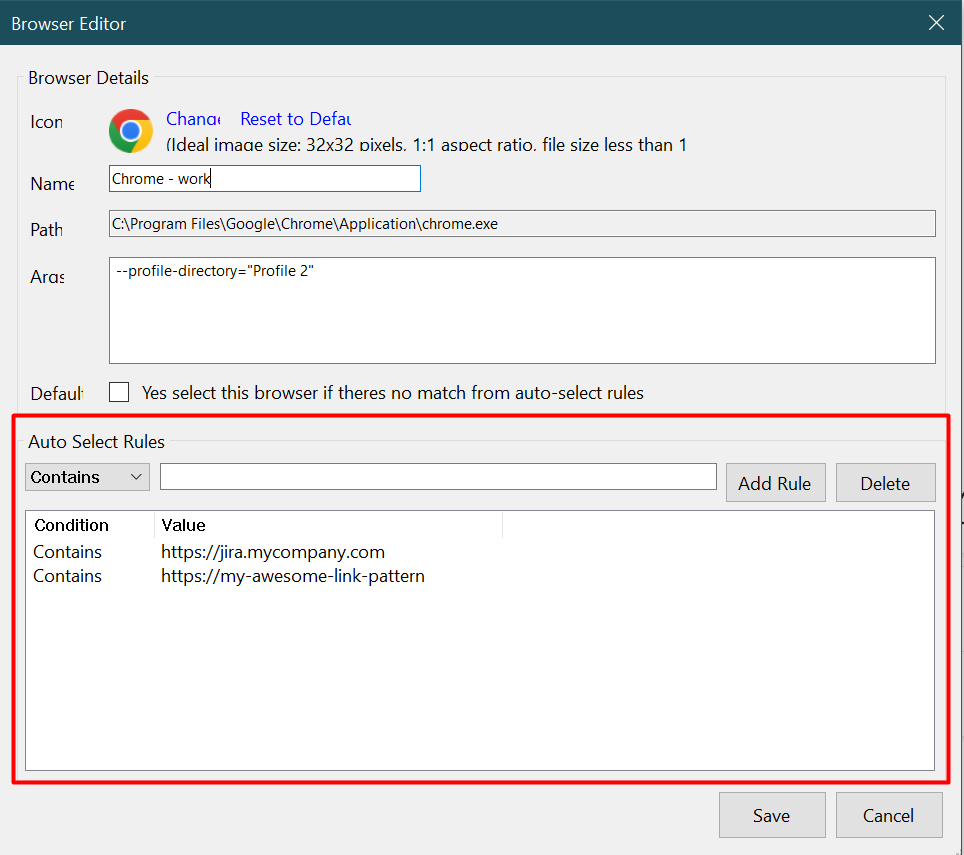
So don't worry if you don't see it immediately. Just click Edit to configure "Auto Select Rules".
Final Thoughts
Browser Selector is a small tool, but it helps me every day.
I no longer:
- Open links in the wrong browser
- Waste time switching browsers
If you use more than one browser or profile, I really recommend trying Browser Selector.